 ArcView Tutorial I: A Basic Tour ArcView Tutorial I: A Basic Tour
Examine ArcView Screen & Tools 2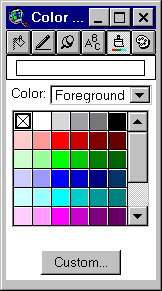
At right is the "Symbols Window" with icons for fill (bucket), line (pen), symbols (pushpin), fonts, colors (paintbrush), and palette manager (to save & load various settings). The symbols window is where you can change shading, line widths, font sizes, etc. You can get this to pop up with Ctrl-P or Window; Show Symbol Window.
Themes in ArcView
(left hand column when a view is visible) can be turned on or off.
"Active" means the box next to the theme is checked. "Selected"
means it has the raised box. At left is the theme list, with all themes
active and the "Landstat.shp" theme both
selected and in edit mode (it has the dashed line around the
checkbox).
Continue with Tutorial
Previous item in Tutorial
Return to ArcView Tutorial 1: List of Topics
Return to Main Menu