 ArcView Tutorial I: A Basic Tour ArcView Tutorial I: A Basic Tour
Examine ArcView Screen & Tools
Your initial ArcView screen will look something like this (This image is from
ArcView 3.1 ... 3.0 is almost identical): 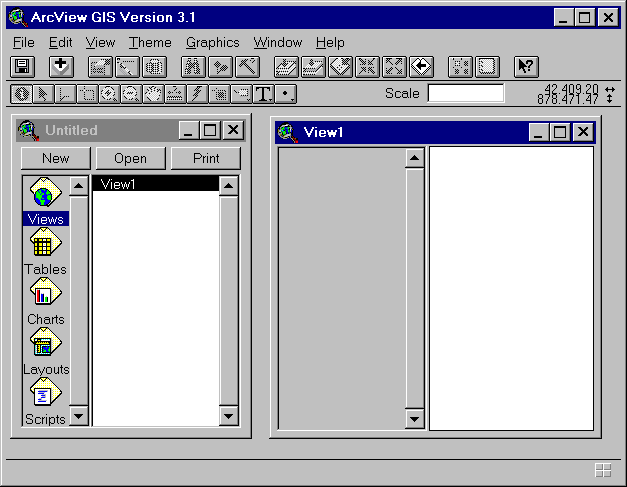
ArcView shares most of the common characteristics of GUI (graphical user interface, like Windows instead of DOS) applications, including:
ArcView has extensive material available under its Help documentation. If you have a question, use it first and ask others later.
Examine the use of Help briefly by clicking with the mouse on Help in the menu, then on Contents in the Help sub-menu. Help includes the Tutorial, which you can use later to familiarize yourself more with ArcView. For now, choose File-Exit from the Help window to return to the ArcView screen.
Three other screen components are similar to those in other windowed programs, especially graphics and mapping packages:
Demonstrate for yourself the use of the status bar by moving the cursor over one of the buttons or tools. You should see a short description of the effect of using the button/tool.
Continue with Tutorial
Previous item in Tutorial
Return to ArcView Tutorial 1: List of Topics
Return to Main Menu